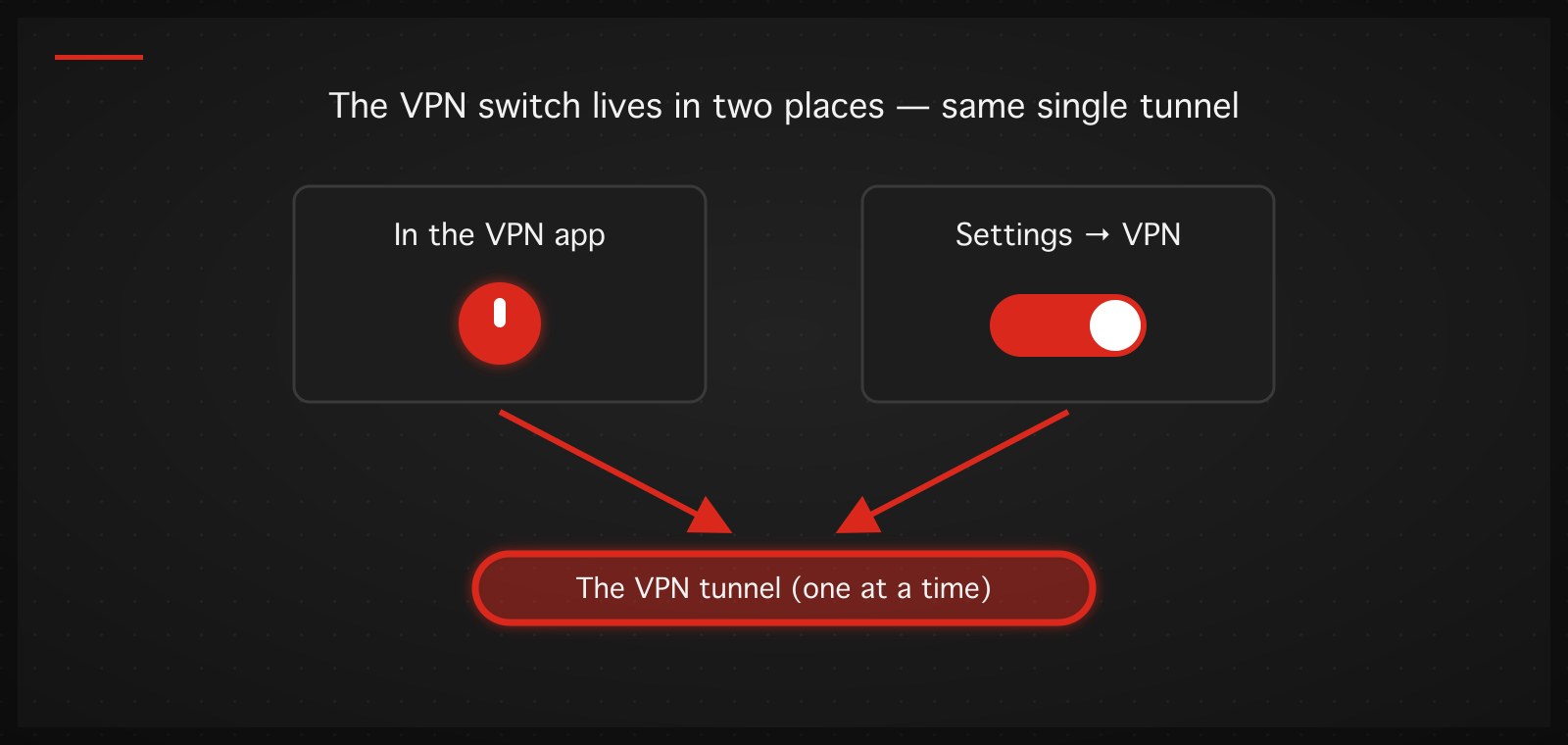
Managing a VPN on an iPhone has exactly one genuinely confusing property, and it is the one that sends people searching for answers: iOS gives the VPN a switch in two places — inside the VPN app, and in the system Settings — and sometimes turning it off in one place makes it come back on from the other. This guide covers turning a VPN on, switching, turning it off, and the classic "my iPhone VPN won't turn off" case, which has the same cause nine times out of ten.
We build an iOS VPN app ourselves; the mechanisms described below are the same ones our app uses.
Turning a VPN on
The normal path is through the VPN app: open it and hit connect. The first time, iOS asks whether to allow the app to add a VPN configuration — accept once, and the app can connect on its own from then on. While the VPN is up, a small VPN badge appears in Control Center.
The other path is the system switch: Settings → VPN, toggle Status to Connected. This uses whichever configuration was last selected. Its limitation is that it can only say "connect" or "disconnect" — choosing a server, a mode, or seeing real status still happens in the app. With TukTukVPN we recommend connecting from the app, because the app picks the server and protocol automatically for the network you are on at that moment, which the bare Settings switch cannot do.
Switching VPNs (servers, and whole apps)
"Switching VPN" means two different things:
Switching server or country inside the same app — done entirely in the app: pick the new server and connect. The app tears down the old tunnel and builds the new one. Settings is not involved.
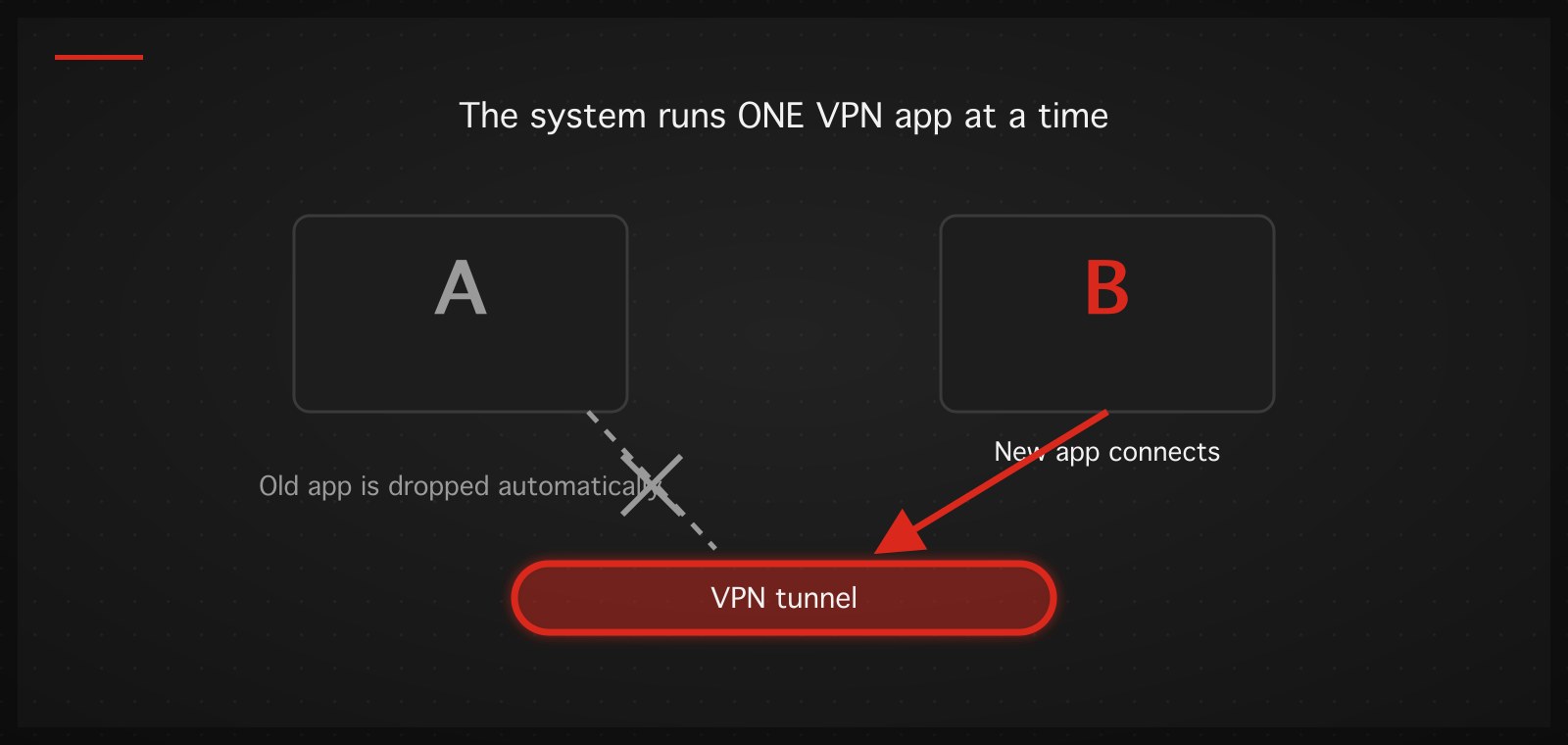
Switching from one VPN app to another — the thing to know is that iOS allows exactly one active personal-VPN configuration at a time. When you hit connect in the new app, the system switches the active configuration for you and the old app is disconnected automatically. There is no need to turn the old one off first.
One extra step when you abandon a VPN app for good: deleting the app does not always delete the VPN configuration it installed. Visit Settings → General → VPN & Device Management → VPN; if the old app's name is still listed, tap the (i) next to it and choose Delete VPN. A stale configuration does nothing while inactive, but it clutters the list and confuses debugging later.
Turning a VPN off
- From the app: tap disconnect — the cleanest way, since the app closes its own session properly.
- From Settings: Settings → VPN, toggle Status off.
Both do the same thing in the normal case. If the VPN comes back on by itself, read on — that is not a bug, it is a feature someone (you, or the app) enabled.
When the VPN won't turn off — the real cause and the fix
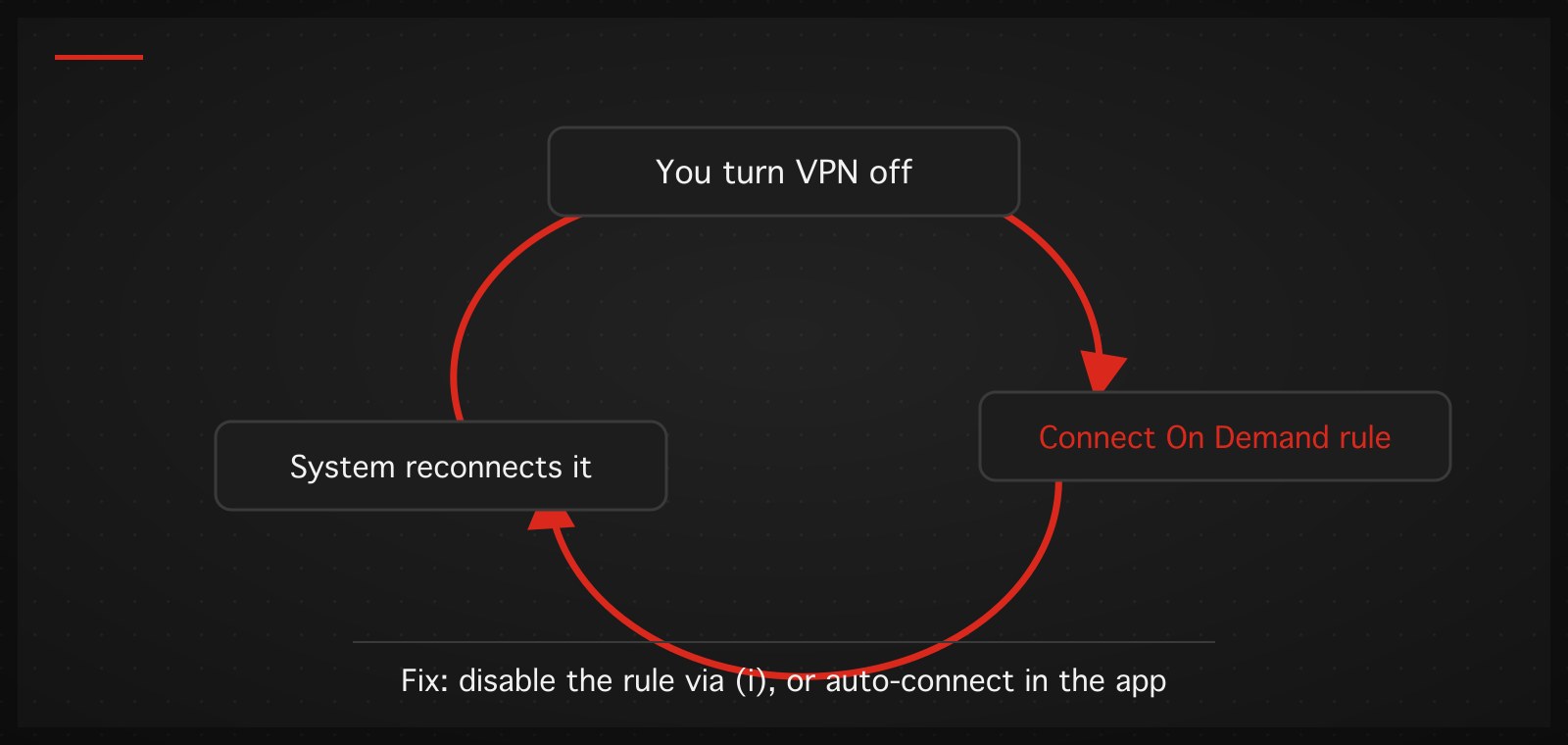
Symptom: you toggle the VPN off and seconds later it flips back to Connected, or you disconnect in the app and the tunnel quietly returns.
The overwhelming cause is Connect On Demand — an iOS capability that lets a VPN configuration declare rules like "when this condition holds, connect automatically." Many VPN apps (ours included, if you enable auto-connect) use it so the VPN survives reboots and network changes. iOS enforces those rules no matter how many times you flip the switch.
Fixes, in order:
- Turn off auto-connect in the app first. If the app has an auto-connect / connect-on-demand / trusted-networks setting, disable it there — the app then withdraws its rules from the system cleanly.
- Override at the system level: Settings → VPN → tap (i) on the stubborn configuration → toggle Connect On Demand off. The VPN switch obeys you again after this.
- Work or school devices: if the configuration came from an MDM profile installed by an organization, you cannot remove it and the switch may be locked. Talk to the administrator; there is no shortcut.
- Last resort: delete the configuration entirely (Settings → General → VPN & Device Management → VPN → Delete VPN) and let the app reinstall it fresh.
Internet dead after switching VPNs?
The second most common complaint: you turn off or switch VPNs and connectivity goes silent. Usually a stale DNS entry or route is left over from the switch. The fastest fix is Airplane Mode for about five seconds — it forces the iPhone to rebuild its network state. If that fails, compare Wi-Fi against cellular: broken on one is that network's problem, broken on both points at a configuration on the device.
Should you leave the VPN on all the time?
Honest answer: it depends on what you use it for. For privacy on public networks, or for services you need the VPN for anyway, leaving it on is fine — modern protocols such as WireGuard idle very cheaply, so the battery cost is small compared with the OpenVPN era. If you use it occasionally for a specific task, turning it off in between is equally reasonable. Just remember: if you enabled auto-connect, the VPN coming back on its own is it doing what you asked.
If you want a VPN that keeps all of this inside one app — automatic server and protocol selection for the network you are on, one button to connect and disconnect, and no stale configurations left behind — TukTukVPN runs on iPhone, iPad, and Mac from a single app. Your first purchase carries a 30-day money-back guarantee.