Turning a VPN on is the easy part of Android — open the app, tap one button. What actually sends people searching is turning it off: it comes back by itself, or the whole phone loses internet, or the VPN menu simply cannot be found on a Samsung. This guide answers each case, with just enough of the mechanism that you can fix the next problem yourself. We build an Android VPN app; the behavior described here is the real behavior our app lives with.
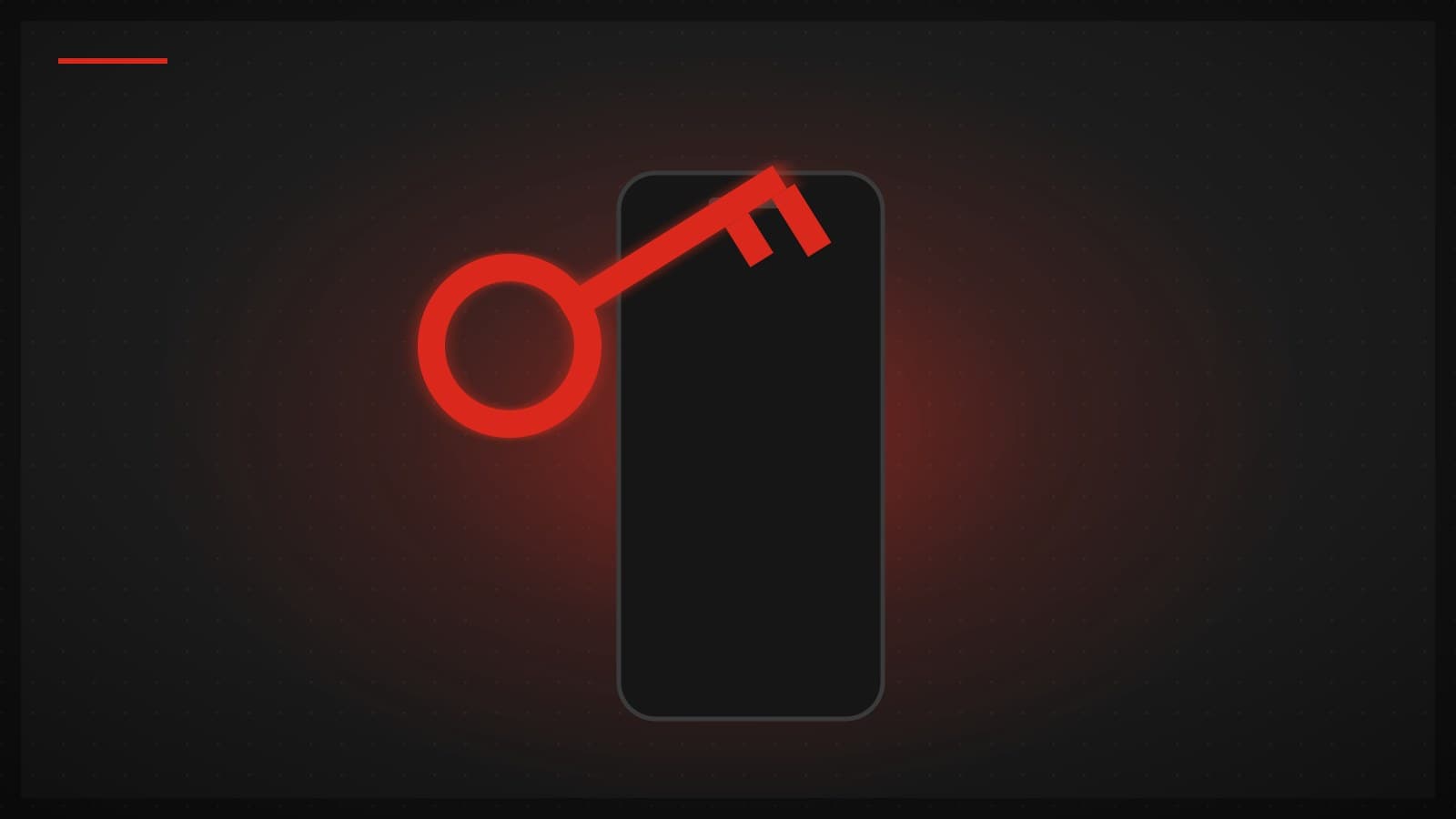
First thing to know: the key icon
Whenever a VPN is active, Android shows a key icon in the status bar. That is the fastest way to tell whether any VPN is running, whichever app owns it.
Ways to turn it off, easiest first:
- From the VPN app — open it, tap disconnect. Cleanest.
- From Quick Settings — pull down the shade; if the VPN's tile is there, tap it.
- From system settings — see the next section, because the path differs by brand.
Where the VPN menu lives: Samsung vs. everyone else
- Samsung (One UI): Settings → Connections → More connection settings → VPN
- Pixel / stock Android / most other brands: Settings → Network & internet → VPN
If neither matches, use the search box inside the Settings app and type "VPN" — every brand supports that shortcut.
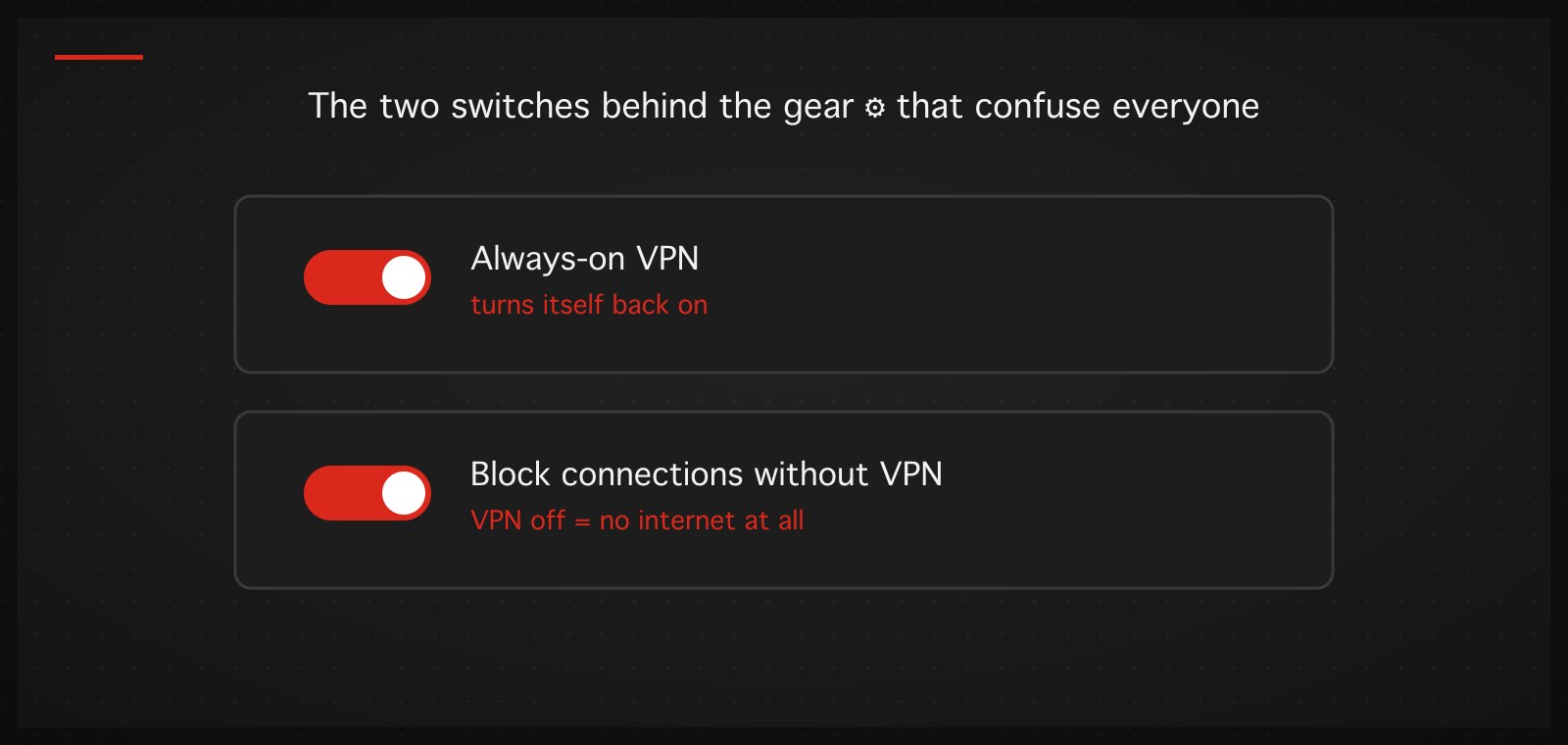
In the VPN list, tap the connected VPN and choose Disconnect — or tap the gear ⚙ next to its name for that VPN's own settings page. That gear matters: the two switches inside it are the answers to the two most-searched VPN problems on Android.
VPN turns itself back on: Always-on VPN
If you disconnect and seconds later the VPN is back, the Always-on VPN switch is almost certainly enabled — an Android system feature that reconnects that VPN whenever it drops, including after a reboot.
Fix: open the VPN list → gear ⚙ next to the VPN → toggle Always-on VPN off. The connect switch obeys you again.
Internet dies when the VPN is off: Block connections without VPN
The second switch on that same gear page is Block connections without VPN — Android's system-level kill switch. With it on, the entire phone's traffic is allowed only while the VPN is connected.
The consequence: if you quit the VPN app but forget this switch, the phone goes silent — not a broken SIM, not an outage, just the system doing exactly what it was told. Turn the switch off, or reconnect the VPN.
A kill switch is a good feature when used deliberately (it stops traffic leaking outside the tunnel when the VPN drops) — the point is knowing you enabled it.
Switching VPNs on a phone
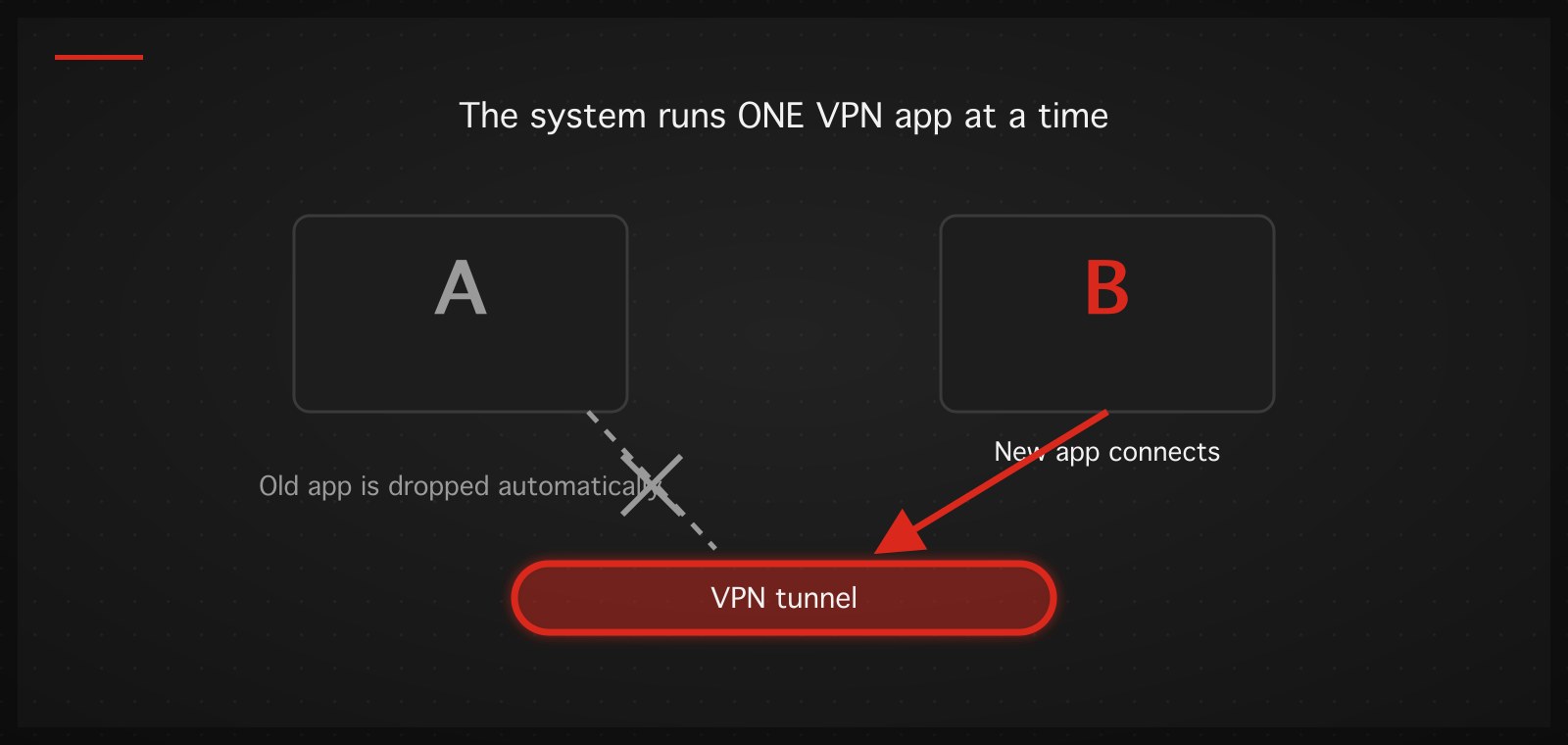
Same rule as iPhone: Android runs one VPN app at a time. Hitting connect in a new app automatically disconnects the old one — no need to shut it down first. Changing server or country within the same app happens entirely inside the app.
One caution when abandoning a VPN app for good: if the old app had Always-on VPN enabled, turn that off before uninstalling. Otherwise the system keeps trying to start a VPN that no longer exists, and some phones surface a recurring error for it.
Can you run a VPN just inside mobile Chrome?
A genuinely common search, and the straight answer is: there is no such thing as a Chrome-only VPN on a phone. Chrome on Android does not support extensions at all (unlike desktop Chrome), so the "VPN extension" you may know from a computer cannot be installed on mobile.
The good news is you don't need it: a VPN on Android works device-wide — connect once and Chrome's traffic, along with every other app's, goes through the same tunnel. Want Chrome on the VPN? Turn the VPN on and use Chrome. (Desktop aside: most "VPN extensions" in desktop Chrome are browser proxies — they do not protect any other app's traffic, which makes them a different thing from a real VPN.)
The short version
- Key icon in the status bar = a VPN is running
- Turns itself back on = disable Always-on VPN behind the gear ⚙
- No internet with VPN off = disable Block connections without VPN, same page
- Switching apps = just connect in the new one; the system drops the old
- Chrome-only VPN on mobile = doesn't exist; the device-wide VPN covers Chrome anyway
TukTukVPN on Android keeps all of this straightforward: one button to connect and disconnect, automatic server and protocol selection for the network you're on, and a kill switch you configure inside the app instead of hunting through system menus. Your first purchase carries a 30-day money-back guarantee.